Outlook add-in: Report spam
With the "Spamexx: Report spam" add-in you report unwanted email to Spamexx directly from Outlook with a single click. The report feeds your own evaluation and strengthens the Spamexx threat database — benefiting every mailbox in your organisation.
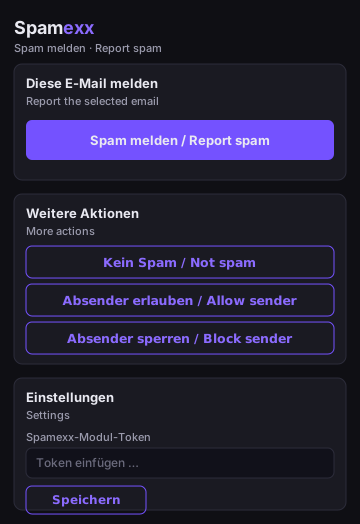
Requirements
- Outlook on the web, the new Outlook for Windows, or a recent classic Outlook (Microsoft 365 / Exchange Online account).
- Your module token from the Spamexx portal: Settings → Modules. The token is used by both Outlook modules and is separate from the check-API keys.
Installation
- Copy the manifest URL:
https://www.spamexx.com/addins/outlook/report/manifest.xml - In Outlook: Manage add-ins (Outlook on the web: gear icon → "Manage add-ins"; new Outlook: Apps → Add-ins) → My add-ins → Add a custom add-in → From URL → paste the manifest URL.
- Alternatively, your IT can deploy the add-in centrally via the Microsoft 365 admin center (Integrated apps → Upload custom apps) to all mailboxes.
Setup
- Open any email and click the Spamexx icon in the ribbon → Settings.
- Paste your module token (from Settings → Modules).
- Choose what happens to the email after reporting: keep, move to junk, or delete.
Usage
Select the unwanted email and click "Report spam". The add-in transmits sender, subject, headers and content to Spamexx for analysis and then handles the email according to your setting. The content is used only transiently for feature computation and is not stored; only the report metadata (sender, subject, headers) is kept.
You can see your reports in the portal under Settings → Modules (statistics) or in the report evaluation.