Outlook add-in: Send encrypted
With the "Spamexx: Send encrypted" add-in you send confidential messages securely to any recipient — no certificates, no extra software on the other side. The message does not leave Outlook as plain-text email: it is stored encrypted at Spamexx, the recipient receives a reading link and opens the message on a secured HTTPS page, where they can also reply securely.
Protection levels
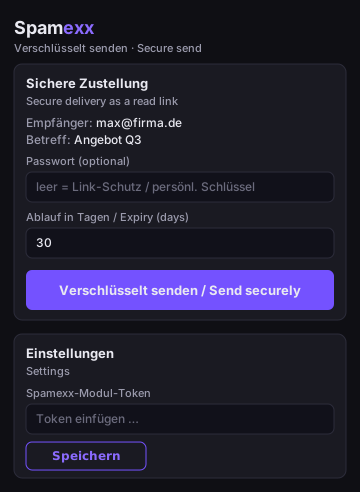
- Reading link: The link is bound to the recipient address and time-limited (default 30 days).
- Sender password (optional): You set a password when sending and share it with the recipient through another channel (e.g. by phone). The password is never included in the email.
- Recipient's personal key: If the recipient has defined a personal key (passphrase) in their Spamexx account under Settings → Profile, every secure message sent to them is automatically protected with it.
Content is stored encrypted server-side with AES-256-GCM; passwords and passphrases are never stored in plain text. Repeated wrong entries temporarily lock access.
Requirements
- Outlook on the web, the new Outlook for Windows, or a recent classic Outlook.
- Your module token from Settings → Modules (same token as the report-spam add-in).
Installation
- Copy the manifest URL:
https://www.spamexx.com/addins/outlook/secure/manifest.xml - In Outlook: Manage add-ins → My add-ins → Add a custom add-in → From URL → paste the manifest URL.
- Central deployment via the Microsoft 365 admin center is also possible.
Usage
- Compose your message as usual (recipients, subject, text, attachments up to 10 MB).
- Click "Send encrypted" in the ribbon.
- Optional: set a password and choose the validity period.
- Send — the recipient receives the notification with the reading link. You can discard the Outlook draft afterwards (it does not need to be sent normally in addition).
Need help with setup? Open a support ticket (included in your plan or available as an add-on) in the Support area.